How to Change Your WordPress Username Safely (Free Plugin Inside)
Meta Description: Stuck with an embarrassing or mismatched WordPress username? Learn how to change your WordPress admin username safely in minutes using SmartUsername, a free, secure plugin that does it right.
The WordPress Username Problem Nobody Talks About
You built your WordPress site, got everything working, and then realized something awkward: your admin username is “admin,” “user1,” or worse, your first client’s company name from when you set things up in a hurry. And now you cannot change it. WordPress, by design, does not let you edit usernames from the dashboard.
This is not just a cosmetic annoyance. Using “admin” as your WordPress username is a genuine security risk. It is the first username every brute force attack tries. Hackers automate login attempts targeting the most predictable usernames, and “admin” sits at the very top of that list.
If you have been Googling “how to change WordPress username” and found guides telling you to edit the database directly with phpMyAdmin, run SQL queries, or delete your account and create a new one, stop. There is a far simpler and safer way.
Introducing SmartUsername: The Easiest Way to Change WordPress Usernames
SmartUsername – Secure Admin Login Renamer & Username Editor Tool is a free WordPress plugin that does exactly one thing, and does it perfectly. It adds a clean, secure interface inside your WordPress admin panel that lets you change any user’s login name in seconds.
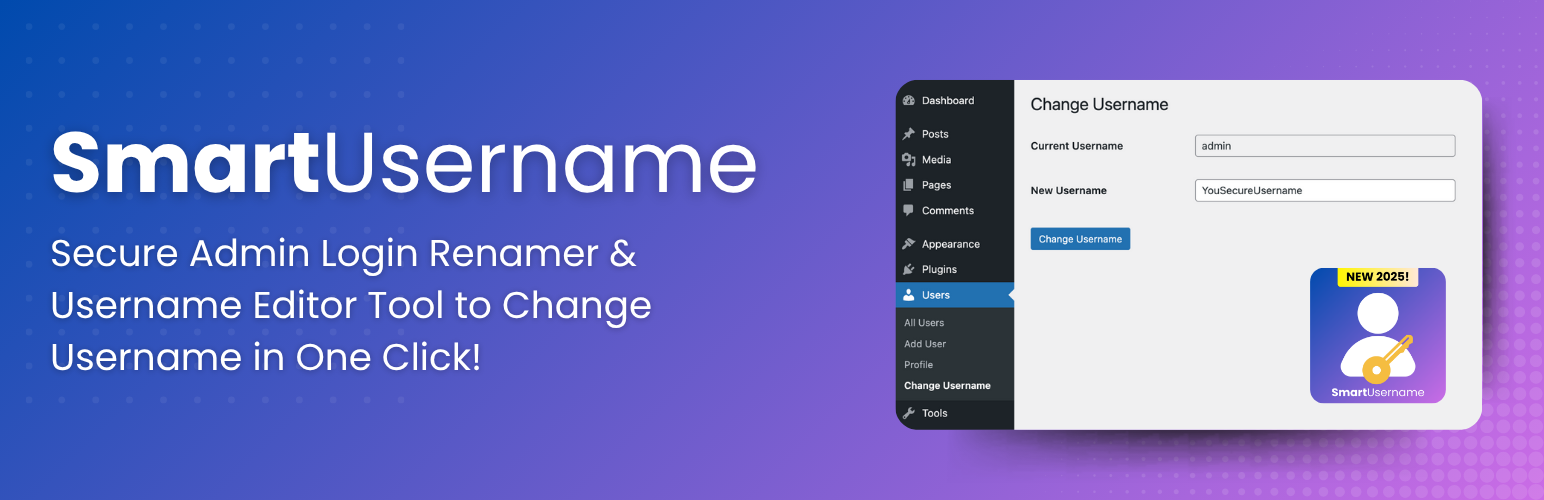
No database access. No SQL queries. No creating new accounts and migrating content. Just navigate to Users → Change Username, type the old name, type the new name, click the button, and you are done.
Why “Just Edit the Database” Is Terrible Advice
WordPress stores usernames in the wp_users table under the user_login column. Technically, you can edit it directly in phpMyAdmin. But here is what those tutorials do not mention:
- Object caching issues: WordPress caches user data aggressively. A raw database edit does not flush the user cache, which can cause login loops, permission errors, and session confusion.
- No validation: If you accidentally set a username that already exists or contains invalid characters, you will corrupt user records without any warning.
- No nonce protection: Direct database edits bypass WordPress’s built-in security layer entirely.
- Human error risk: One wrong click in phpMyAdmin can wipe a table. The stakes are too high for a task this routine.
SmartUsername handles every one of these edge cases automatically. It validates the new username before saving, checks for duplicates, sanitizes all input, clears the user cache after the change, and logs out of the current session cleanly if you changed your own username.
Key Features of SmartUsername
Simple, Intuitive Admin Interface
The plugin integrates directly into your WordPress Users menu. No separate settings page buried under a confusing plugin menu, it lives exactly where you would expect it: Users → Change Username. The interface is clean, minimal, and impossible to misuse.
Rock-Solid Security
SmartUsername was built with WordPress security best practices from day one:
- Nonce verification on every form submission prevents CSRF attacks
- Capability checks ensure only users with
manage_options(Administrator level) can make changes - Input sanitization and validation on both the old and new username fields
- Duplicate username detection to prevent conflicts
- Proper cache clearing so the change propagates instantly site-wide
Instant, Zero-Downtime Changes
Username changes take effect immediately. No waiting for cron jobs, no site restarts, no cache purge plugins needed. The plugin handles the entire process in a single atomic operation, the username updates, the cache clears, and the user is notified, all in one click.
Works for Any User, Including Yourself
Administrators can change their own username, another administrator’s username, or any regular user’s username. This is particularly useful for agencies managing client websites, when a client rebrands or a team member leaves, you can update their login credentials without creating new accounts and losing post authorship data.
No Data Loss, Ever
Changing a username with SmartUsername only modifies the user_login field. All posts, pages, comments, orders, profile data, and user meta remain 100% intact and properly associated with the account. The user just logs in with a new name, nothing else changes.
Who Should Install SmartUsername?
WordPress Agencies and Freelancers
If you manage multiple client websites, you will deal with username changes constantly. Clients rebrand. Staff members leave and new ones join. Usernames like “john2019” or “websiteadmin_old” need cleaning up. SmartUsername turns a 20-minute database task into a 20-second job you can do remotely without SSH access.
Security-Conscious Site Owners
If your current admin username is “admin,” “administrator,” or your website’s name, change it right now. These are the first usernames targeted by automated brute force bots. A strong, unique username combined with a strong password and two-factor authentication makes your WordPress login virtually impenetrable to automated attacks.
Membership and E-Commerce Sites
Users want to update their login names. On a WooCommerce store or a membership platform, being locked into a username forever is frustrating. SmartUsername gives administrators the ability to update customer login names upon request, a small courtesy that builds significant customer loyalty.
Corporate WordPress Installations
Employee turnover means outdated usernames. When Sarah from marketing leaves and Mike joins, you want Mike’s account to reflect his identity, not Sarah’s old username that he inherited. SmartUsername makes this a painless, routine task.
How to Install and Use SmartUsername
Installation (2 minutes)
- From your WordPress Admin, go to Plugins → Add New
- Search for “SmartUsername”
- Click Install Now, then Activate
- Done, no configuration needed
Alternatively, download the plugin directly from the official WordPress Plugin Repository and upload it manually via Plugins → Add New → Upload Plugin.
Changing a Username
- Navigate to Users → Change Username in your WordPress admin sidebar
- Enter the current username in the first field
- Enter the new username in the second field
- Click Change Username
- That is it, the change takes effect immediately
If you changed your own username, WordPress will log you out and redirect you to the login page. Log back in with your new username and the same password.
SmartUsername vs. The Alternatives
| Method | Time Required | Risk Level | Cache Cleared | Validation |
|---|---|---|---|---|
| SmartUsername Plugin | 30 seconds | None | Yes, automatic | Full |
| phpMyAdmin direct edit | 10-20 minutes | High | No | None |
| Create new account + migrate | 30-60 minutes | Medium | N/A | N/A |
| WP-CLI command | 5 minutes (if you have server access) | Low | Partial | Basic |
For anyone without server-level access, which is most WordPress site owners, SmartUsername is the only risk-free, beginner-friendly option.
Frequently Asked Questions
Will changing my username log me out?
Yes, if you change your own username. This is expected behavior, your current session is tied to the old username. Simply log back in with the new username and your existing password. All your settings, posts, and permissions remain exactly the same.
Can I change a username back if I make a mistake?
Absolutely. Just go to Users → Change Username again and reverse the change. The plugin has no restriction on how many times a username can be changed.
Does SmartUsername work with WooCommerce?
Yes. WooCommerce uses WordPress’s native user system, so username changes via SmartUsername apply to WooCommerce customer accounts as well. Order history, addresses, and all customer data remain intact.
Does it work on WordPress Multisite?
SmartUsername works on individual sites within a Multisite network. You will need to network-activate it or activate it site-by-site depending on your preference.
Is there a premium version?
No. SmartUsername is completely free, open-source (GPL v2), and has no premium upsells. It does exactly what it promises, for free, forever.
The Security Case for Changing Your WordPress Username Right Now
Here is a sobering statistic: approximately 8% of all WordPress security breaches involve brute force attacks on the login page. Automated bots cycle through thousands of username and password combinations per minute, targeting sites around the clock.
Using “admin” as your username gives attackers a 50% head start, they already know the username, now they just need the password. Change it to something unique and unpredictable, and you eliminate that entire attack vector entirely. Combined with a strong password and two-factor authentication, a unique username makes your WordPress admin virtually impossible to brute-force.
This one five-minute change could be the difference between a compromised site and a secure one.
Download SmartUsername, It Is Free
SmartUsername is available for free from the official WordPress Plugin Repository. It has been tested up to WordPress 6.8.5, follows all WordPress coding standards, and is actively maintained with updates for compatibility with new WordPress releases.
Download SmartUsername from WordPress.org →
If you manage WordPress sites professionally, add this to your standard setup checklist. Every new site should have a secure, unique admin username, and SmartUsername is the fastest, safest way to make that happen.





)